
An arrival with a purpose
Bring in a patrol, creature or other force with a timing suggestion. Decide who it supports, what it wants and whether its arrival creates a useful choice.
Give a stalled fight a new decision
Change the tactical question with an arriving force, shifting terrain or a new pressure. Choose the controls, read the warning and decide how it enters your encounter.
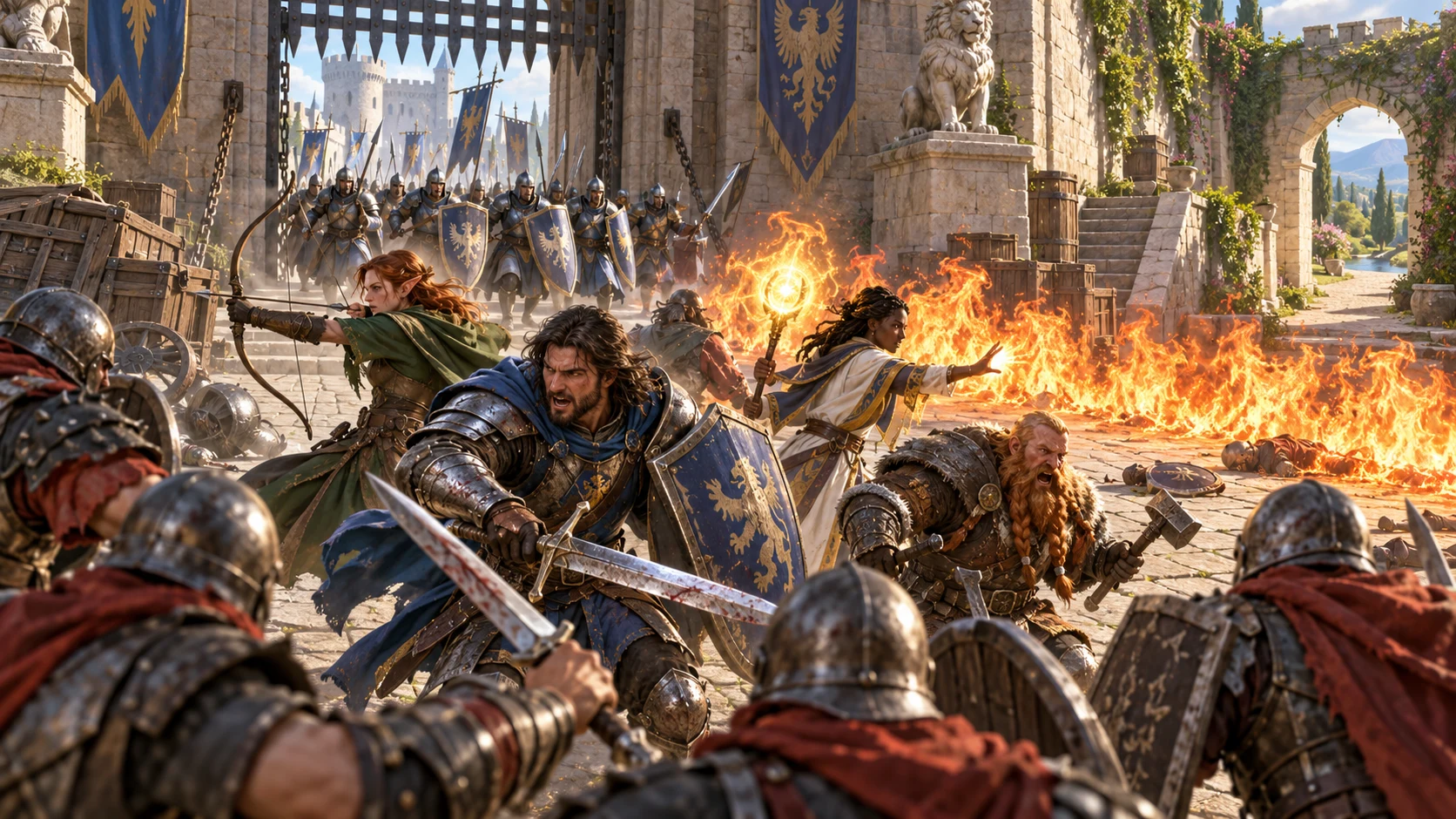
A new decision at the table
A change can create a deadline, disturb a formation or offer a way to end a fight. Use the prompt that serves the encounter you are actually running.
Bring in a patrol, creature or other force with a timing suggestion. Decide who it supports, what it wants and whether its arrival creates a useful choice.
Introduce a terrain or environmental prompt drawn from the chosen scene. Interpret the change using your table’s rules and the space already in play.
A third party or morale event can change priorities. Optional objective and resource categories let you explore a different question from simply defeating everyone.
Read the warning, effect, pressure and exit guidance together. Give the group room to react and retain the parts that make sense in your encounter.
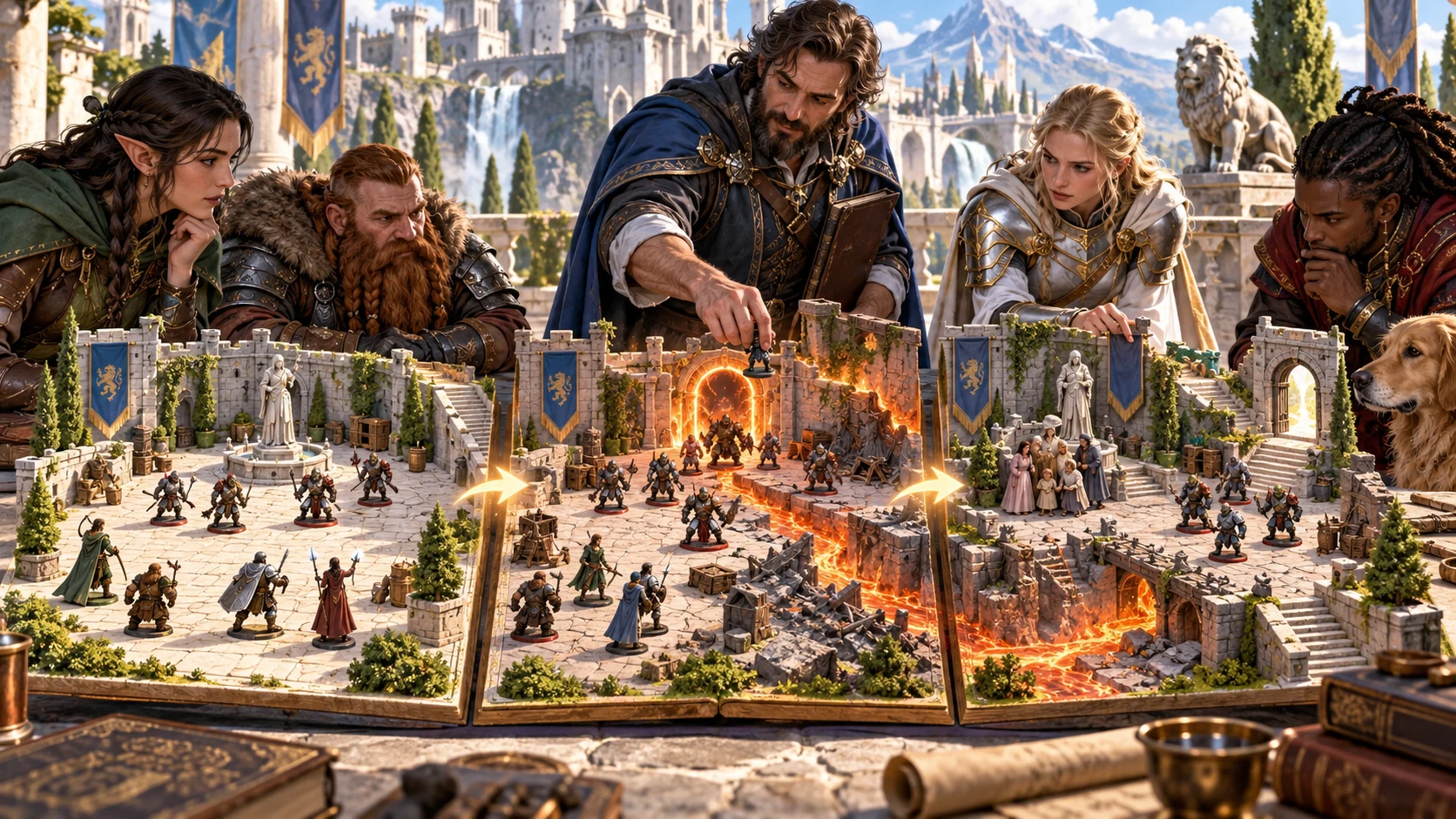
A change you can introduce
Choose the context and round, then decide which categories and severity suit the moment.
Use the warning, effect and exit to introduce a shift the players can recognise and respond to.
From scene to table
Prepare one entry at a time and review how it fits the encounter before putting it into play.
Select one of six scene contexts and a round from 1 to 200. Each generation advances the displayed round by one, up to 200. Set it yourself to match the table.
Keep the original weighted mix, ask for an even mix or pick a specific category. Enable objective or resource prompts when useful. These begin switched off.
Review description, timing, severity, warning, effect, pressure, exit and fairness notes. Apply the suggested change using your own encounter knowledge and rules.
Hold useful fields, generate the next entry and keep earlier entries in the fight log. Use Save fight before starting a new fight, and export useful records.
Controls with a clear purpose
The generator supplies structured encounter prompts while you retain decisions about timing, fairness and application.
Choose urban, wilderness, dungeon/interior, siege/large battle, ship/waterfront or arcane/planar. Reinforcement and environmental prompts draw from the selected context.
Roll with the original mix or choose an even mix. Reinforcement, environment, third-party and morale begin enabled. Objective Shift and Resource Pressure begin switched off.
Roll or choose Subtle, Strong or Decisive severity. Party standing, enemy standing and battlefield labels appear in the pressure guidance for your review.
Read the event alongside timing, warning, effect and exit guidance. Fairness notes help you introduce a change the table can respond to. You decide what fits.
Hold event, timing, effect and exit independently while generating the next entry. Review the combined prompt when changing scene or severity with a held field.
Avoid the immediately preceding category when rolling, if another enabled category remains. A fixed choice, held event or exhausted eligible set can still repeat.
Keep successive escalations in the open fight. Use Save fight to store it on this computer, then reopen or delete local saves. Saving again updates that fight.
Download the whole fight as JSON in chronological order, copy the fight as text or copy the current read-aloud passage. Review anything you share with players.
Selection and pressure
Use categories to choose the kind of prompt, and severity and standing labels to frame the accompanying guidance.
The four default categories use weights of 25%, 30%, 20% and 25% for reinforcement, environment, third party and morale. An even mix gives enabled categories equal selection weight.
Objective Shift and Resource Pressure begin switched off. Enable them for rolled selection or make a fixed category choice. Clearing every checkbox restores the default set rather than producing an empty result.
Urban, wilderness, dungeon, siege, ship and arcane contexts supply different reinforcement and environmental material. Other categories use general prompts across contexts.
Choose or roll severity. Set party and enemy standing and a battlefield label for the pressure text. These controls do not read the encounter or calculate a balanced change.
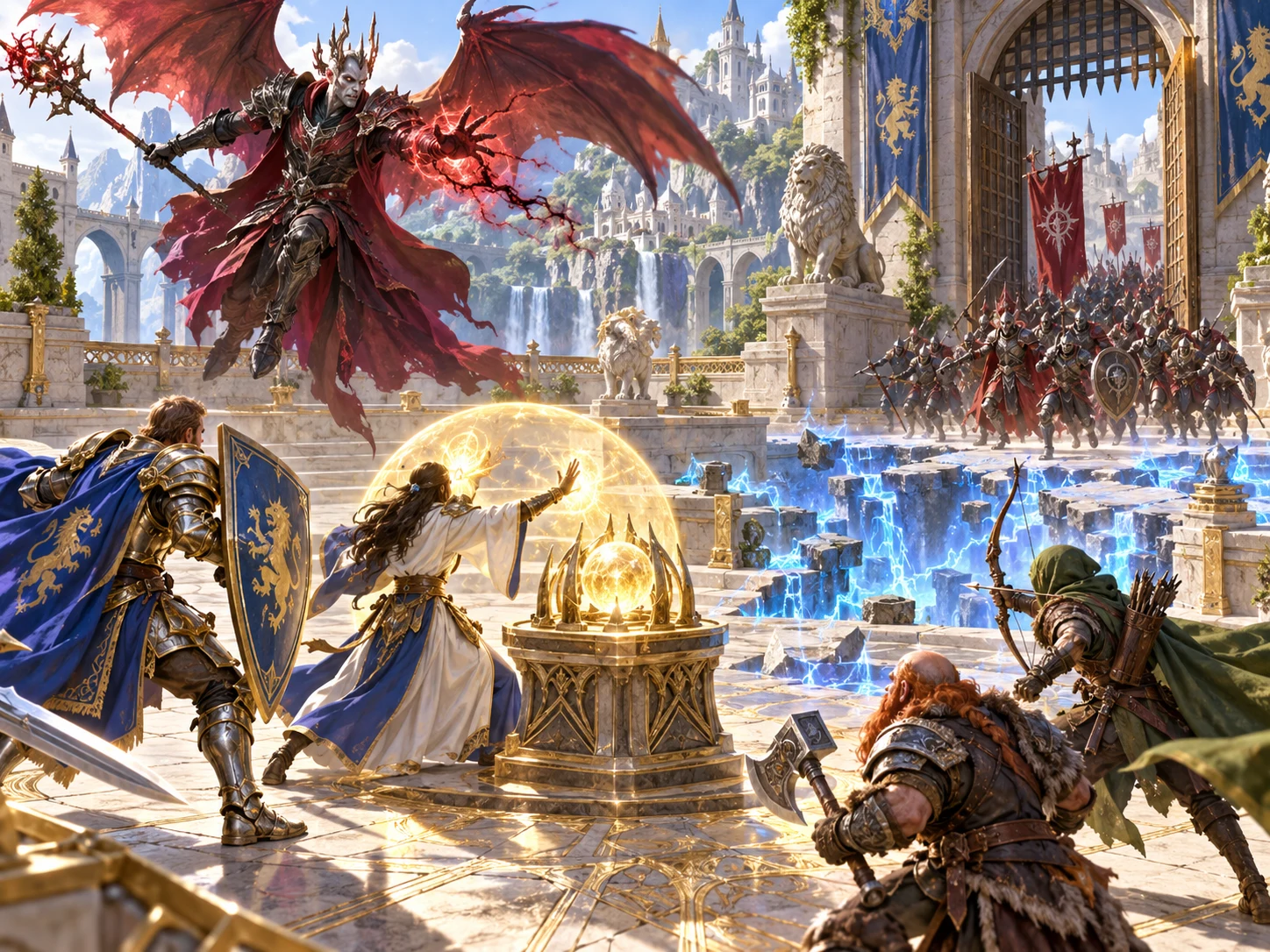
An event with counterplay
Use the event’s warning, effect and exit alongside its timing and fairness guidance.
The artwork illustrates a changing encounter. It is not an application screen or generated picture.
Keep what serves the fight
Each entry stays in the open fight log. Held material comes from the entry currently on screen.
The event hold keeps its category, description and any faction or trigger. Timing, effect and exit are independent holds. Warning, severity and pressure can still change.
A held event can retain content from an earlier context while new guidance reflects the latest controls. Read the combined result and decide whether it belongs in the changed scene.
Avoid repeat is off until you ask for it. It excludes the immediately preceding category during rolled selection when alternatives remain. Fixed choices, held events or a single eligible category can still repeat.
To compare controlled results, enter your own seed and keep equivalent controls and previous held material. The input clears after generation, so re-enter it. An automatically displayed seed is not a guaranteed replay code.
Keep and apply the result
A fight log preserves useful prompts. It does not replace encounter judgement or provide an automated combat connection.
Use Save fight to store context and the log locally. Reopening restores them and the next round, not every generation control. Saving the same fight again updates its file; there is no autosave, cloud sync or prior-version library.
Download structured escalation records in chronological order, or copy the fight as text. The tool has no JSON import control. Save or export before New fight clears the open log. Review copied and exported material before sharing.
The generator does not calculate encounter balance or execute suggested dice, damage or checks. Timing can include a dice expression or a future condition for you to interpret. Party and enemy labels describe pressure rather than reading actual combat state.
Copy the current read-aloud passage when useful and review its wording. Printing uses the current application view. There is no direct Combat PRO handoff or automatic player/private projection; other products require separate access.
Choose access for your toolkit
Combat Escalation is a paid standalone tool. Create a free account first, then review your selection and subscription.
Select Combat Escalation individually. Creating a free account does not by itself include paid generator access.
Choose a five-generator pack for other eligible standalone tools alongside this one. It provides selection capacity, not automatic access to every VISINVOKE product.
Review larger selected-generator packs in your account. Check the actual generators, subscription and reselection terms before choosing your toolkit.
Combat PRO, Battlemaps and image systems have their own access models. Standalone generator subscriptions do not include image or animation credits.

Bring a new tactical question to the table without designing a whole encounter from scratch. Choose whether the suggestion helps this moment.
Keep an event or exit you want to use while exploring other fields. Review each resulting combination before accepting it.
Start Here and How Do I guidance cover context, round, selection, severity, standing, holds, repetition, saving and exports.
Introduce the warning, interpret the timing and choose how the table can respond. The prompt supports preparation and play while judgement stays with you.
Build your tabletop toolkit
Each card opens that product’s own website. Review purpose and access separately; related products do not promise included access or automatic synchronisation.

Discover and open your supported Windows products through one connected VISINVOKE account.

Explore environment packs for tactical locations and the places your encounters unfold.
Review prepared opposition, tune creature statistics and run tabletop encounters with its own access.

Create focused character, monster, item and location images to complement your tabletop preparation.

Create guided commercial visuals for websites, brochures and wider creative projects.

Explore a separate futuristic RPG experience with its own world, characters and progression.
Product artwork illustrates encounter preparation, not application screens or actual generated image output.
Quick answers
Understand selection, held fields and saved records before opening the tool.
It provides prompts and guidance. It does not calculate encounter balance, read live combat state, roll the suggested dice, move combatants or apply hit points, terrain or initiative changes. You decide how to use each escalation.
There are six scene contexts. The four default categories use reinforcement, environment, third-party and morale weights of 25%, 30%, 20% and 25%. Objective Shift and Resource Pressure are optional. An even mix and fixed category choice are also available. Only reinforcement and environmental material depends on scene context.
The event hold preserves the previous category, description and its faction or trigger, where present. Timing, effect and exit have separate holds. Other guidance can change. Avoid repeat concerns the immediately preceding category when rolling; it is not a guarantee that content never repeats. Review held material after changing context or severity.
For controlled comparisons, enter your own seed and keep the same controls and previous record used by field holds. The seed input clears after generation, so re-enter it when needed. An automatically displayed seed is not a guaranteed replay code. Changed controls, round or held material can change the result.
Save fight stores the context and fight log locally. Reopening restores those records and the next round, not every generation control. Saving again replaces that fight save. JSON exports the whole fight as structured records; there is no JSON import control, cloud sync or prior-version library. Save before starting a new fight.
Create a free VISINVOKE account, select Combat Escalation at US$1.99/month or through an eligible selected-generator pack, then open it in Desktop Command Centre on Windows. Fight records remain local. Combat PRO and other products have separate access; this tool has no direct Combat PRO handoff.
Continue in VISINVOKE
Create a free VISINVOKE account and choose the required generator access.
Get Desktop Command Centre from your account installer page. Sign in on Windows, then open Combat Escalation.